Installing Securosys KACLS
This page describes how to set up a Google Workspace with client-side encryption (CSE), with encryption keys protected in a Securosys HSM. The HSM is accessed through the Securosys Key Access Client List Service (KACLS).
The installation happens in two main steps: the deployment of the Securosys Key Service followed by the configuration of the Google Workspace.
Prerequisites
To follow this guide, you need:
- A Primus HSM or CloudHSM
- Your Partition needs to have the JCE API enabled
- A Google Workspace tenant, and administrator privileges to it
- A server with Docker and Docker Compose installed, to deploy the Securosys Key Service on
Wrapping Key
There are two ways to have a wrapping key in your Primus HSM:
- Use an existing key that is already available on your Partition,
- Let the Key Service create one for you during the initialization of the service.
In either case, you need to define the key name, algorithm and tag length you want in the application.yml file (see below).
The Key Service will use this key for wrapping and unwrapping, and create it if it does not exist.
If you lose the wrapping key, you will not be able to decrypt your data in Google Workspace!
To mitigate this risk, take the following measures:
- Make the key indestructible by setting the
destroyable=falsekey attribute at creation time. - Enable key invalidation on your Partition.
- Take a Device Backup or Partition Backup of your HSM keystore.
Key Service Configuration
Download the Securosys Key Service configuration files.
The ZIP file contains the application.yml configuration file that you need to update.
Importantly, you need to configure:
- Which HSM and Partition to connect to:
hsm.host,hsm.user,hsm.setupPassword - Which wrapping key to use:
hsm.keyName,hsm.cipherAlgorithm,hsm.tagLength - Your workspace domain and e-mail addresses
Below is the full template.yml file with the most important Key Service configuration details highlighted.
Expand to view the full template file
# Full Securosys Google Workspace CSE KACLS configuration template.
# Copy required settings to application.yml and replace every replace-me value.

server:
  port: 443                              # HTTPS listener; omit :443 from the Google Admin KACLS URL.
  address: 0.0.0.0                       # Listen on every container interface.
  domain: 'replace-me-kacls.example.com' # Public DNS name; no scheme or path.
  https: true                            # Builds/validates the KACLS URL in JWT claims.
  ssl:
    enabled: true                        # Required by Google.
    bundle: cse-tls

# Google requires TLS 1.2+ and a valid X.509 certificate covering server.domain.
spring.ssl.bundle.pem.cse-tls:
  options:
    enabled-protocols: [TLSv1.3, TLSv1.2]
  reload-on-update: false                # Restart after certificate rotation.
  keystore:
    certificate: file:/etc/app/config/tls/server.crt # Leaf followed by intermediates.
    private-key: file:/etc/app/config/tls/server.key # Unencrypted PKCS#8 PEM.

logging:
  config: /etc/app/config/log/logback.xml

cors:
  # Required Google CSE browser origin. Never use a wildcard in production.
  allowedOrigins:
    - 'https://client-side-encryption.google.com'
  allowedMethods: [GET, POST, OPTIONS]
  allowedHeaders: [Origin, Content-Type, Accept, Authorization]
  maxAge: 3600                           # Preflight cache lifetime in seconds.
  order: 100                             # Servlet filter order.
  # urlPatterns: ['/*']                  # Omitted means every endpoint.

trusted:
  # Perimeter allowlists. Empty email and domain lists trust no identities.
  # A user is accepted when either the full address or the domain matches.
  emails:
    - 'replace-me-user@replace-me-workspace-domain.example'
  domains:
    - 'replace-me-workspace-domain.example'

  # Applied to google-visitor and customer-idp authorization email types.
  visitorEmails:
    - 'replace-me-visitor@replace-me-workspace-domain.example'
  visitorDomains:
    - 'replace-me-workspace-domain.example'

  # Reserved PKI-provider allowlist. Empty currently allows all providers.
  pkiProviders: []

  # Accepted authorization and authentication token issuers.
  iss:
    - 'gsuitecse-tokenissuer-drive@system.gserviceaccount.com'
    - 'gsuitecse-tokenissuer-meet@system.gserviceaccount.com'
    - 'gsuitecse-tokenissuer-calendar@system.gserviceaccount.com'
    - 'gsuitecse-tokenissuer-gmail@system.gserviceaccount.com'
    - 'apps-security-cse-kaclscommunication@system.gserviceaccount.com'
    - 'https://replace-me-idp.example'

  # Google authorization, customer IdP, and KACLS migration audiences.
  aud:
    - 'cse-authorization'
    - 'replace-me-idp-audience-or-client-id'
    - 'kacls-migration'

  # Official Google CSE JWKS endpoints plus one explicit customer IdP endpoint.
  # The five Google mappings are also resolved automatically by the service.
  # Quote [issuer] so Spring preserves @, : and / in the exact JWT iss map key.
  jwtJwksUrls:
    '[gsuitecse-tokenissuer-drive@system.gserviceaccount.com]': 'https://www.googleapis.com/service_accounts/v1/jwk/gsuitecse-tokenissuer-drive@system.gserviceaccount.com'
    '[gsuitecse-tokenissuer-meet@system.gserviceaccount.com]': 'https://www.googleapis.com/service_accounts/v1/jwk/gsuitecse-tokenissuer-meet@system.gserviceaccount.com'
    '[gsuitecse-tokenissuer-calendar@system.gserviceaccount.com]': 'https://www.googleapis.com/service_accounts/v1/jwk/gsuitecse-tokenissuer-calendar@system.gserviceaccount.com'
    '[gsuitecse-tokenissuer-gmail@system.gserviceaccount.com]': 'https://www.googleapis.com/service_accounts/v1/jwk/gsuitecse-tokenissuer-gmail@system.gserviceaccount.com'
    '[apps-security-cse-kaclscommunication@system.gserviceaccount.com]': 'https://www.googleapis.com/service_accounts/v1/jwk/apps-security-cse-kaclscommunication@system.gserviceaccount.com'
    '[https://replace-me-idp.example]': 'https://replace-me-idp.example/.well-known/jwks.json'

  # HS256 is for explicitly enabled local/test issuers only.
  jwtSharedSecrets: {}

  # Must match a delegated token's optional kacls_owner_domain claim.
  kaclsOwnerDomain: 'replace-me-workspace-domain.example'

  # Empty disables /wrapprivatekey and IdP-authorized privileged APIs.
  wrapPrivateKeyAdminEmails:
    - 'replace-me-cse-admin@replace-me-workspace-domain.example'

hsm:
  # Permit outbound TCP access. Host/port combinations are tried in sequence.
  host:
    - 'replace-me-primary-api.cloudshsm.com'
    - 'replace-me-secondary-api.cloudshsm.com'
  port:
    - '2300'
  user: 'replace-me-hsm-user'

  # First-login OTP used to create the blinded secret file.
  # Remove the value after successful setup and retain config-files/.secret securely.
  setupPassword: 'replace-me-hsm-setup-password'
  secretPath: '${SECRET_PATH:/etc/app/config/.secret}'

  # Optional CloudsHSM proxy credentials; empty means a direct HSM connection.
  proxyUser: ''
  proxyPassword: ''

  attestationKeyName: 'attestation-key'  # Created automatically if missing.

  # Created as a persistent AES-256 key on first startup if absent.
  # Existing keys are reused without changing their attributes.
  # Keep the label stable.
  # Generated attributes: sensitive, non-extractable, modifiable, indestructible.
  keyName: 'cse-wrapping-key'
  wrappingKeyIndestructible: true        # Set false only for disposable environments.
  cipherAlgorithm: 'AES_GCM'             # CipherAlgorithm enum name.
  tagLength: 128                         # AES-GCM tag length in bits.

  # Created as a persistent RSA signing key on first startup if absent.
  # Existing keys are reused and must have a persisted RSA public-key object.
  jwtSigningKeyName: 'cse-jwt-signing-key'
  jwtSigningKeySize: 3072                # Guidance; minimum supported is 2048.

springdoc:
  api-docs:
    enabled: false                       # Enable only on a protected admin network.
    path: /v3/api-docs
  swagger-ui:
    enabled: false
    path: /swagger-ui.html
    disable-swagger-default-url: true
Afterwards, start the Docker container:
docker compose up --detach
API Reference
The Key Service API uses the standard list of endpoints, as defined by Google.
Add Key Service to Google Workspace
The administrator of your Google Workspace has to enable and configure CSE.
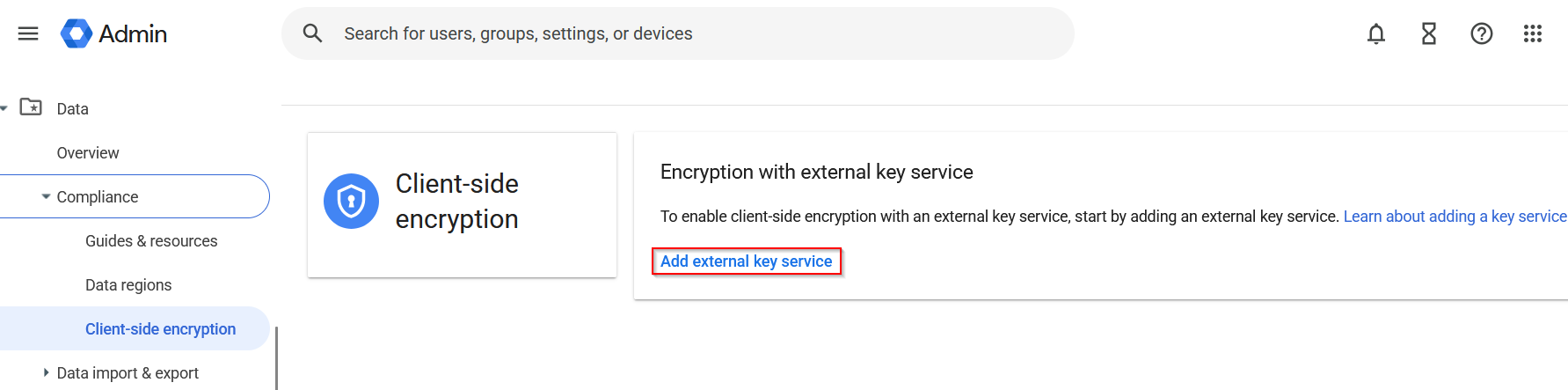
Firstly, in the Admin Console, navigate to Data > Compliance > Client-Side Encryption and select Add external key service.
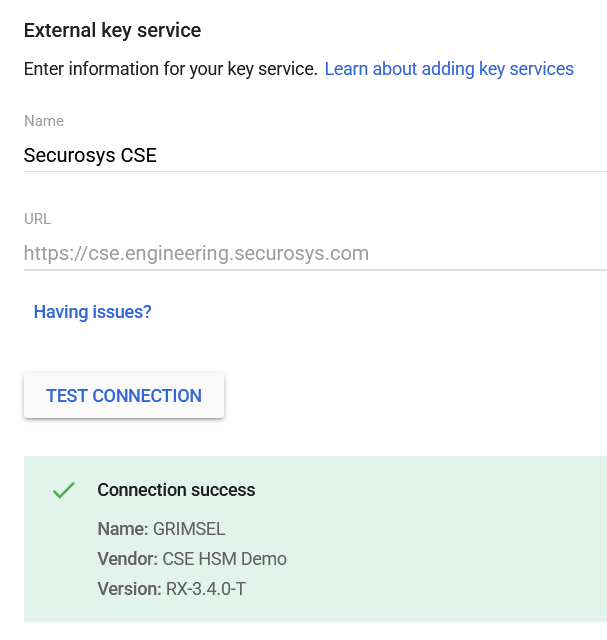
In the next menu, enter the following details:
- Name: Some descriptive name for your key service
- URL: The HTTPS URL of your
server.domain
Navigate back to the CSE page where you now see multiple new options.
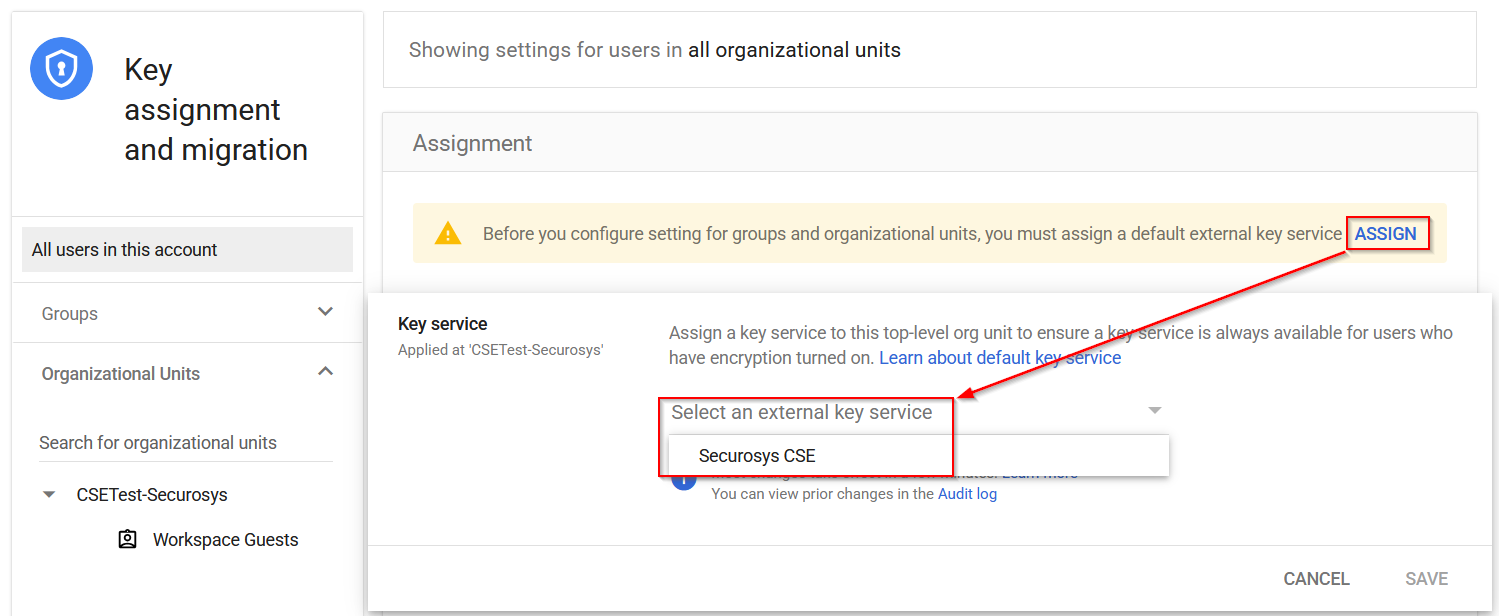
Next, assign a default external key service. Select Assign and then in the Assignment section, select Assign again. In the dropdown menu, select which key service should be used by default.
Connect Your IdP
Connect your IdP to your Google Workspace by following Google's documentation. You have two options:
- Option 1: Connect to your IdP using a .well-known file
- Option 2: Connect to your IdP using the Admin console
For convenience, the below section describes how to do it via the Admin Console.
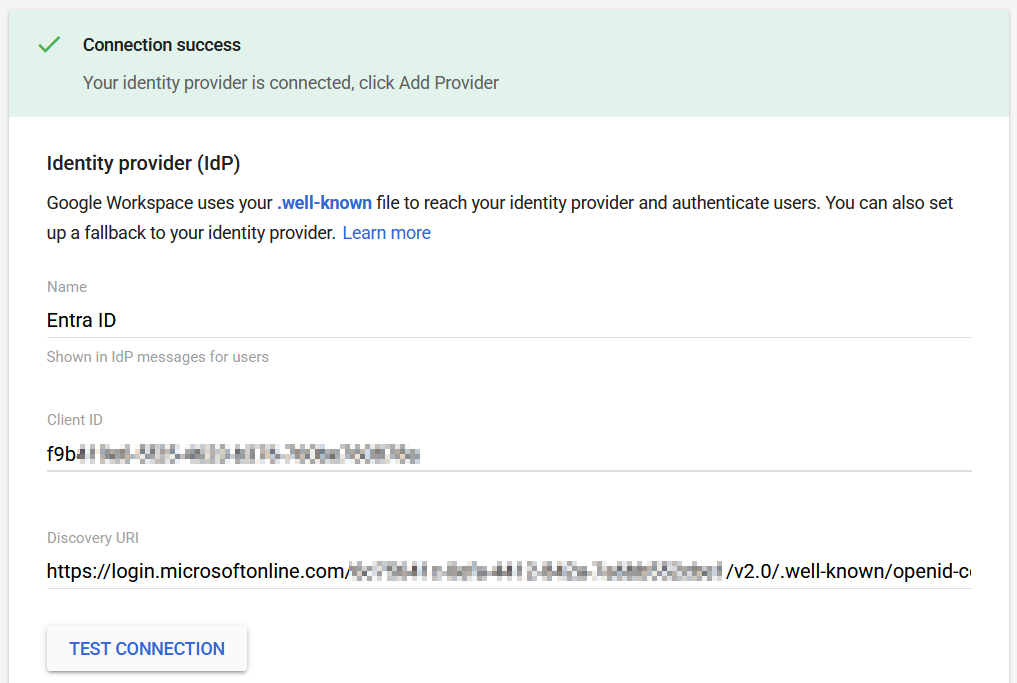
Add the IdP configuration details via the IdP fallback button.
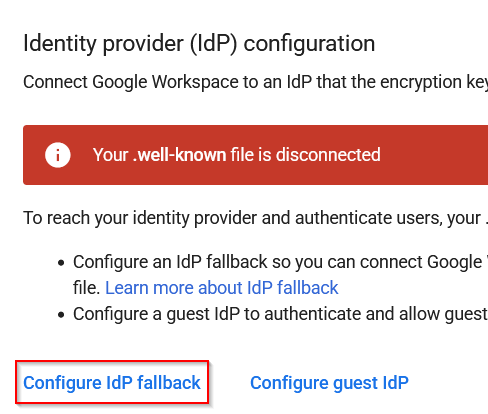
In this example, Microsoft Entra ID is used a the IdP, but similar details can be generated in any IdP that supports the OIDC standard.
Enable CSE for Apps
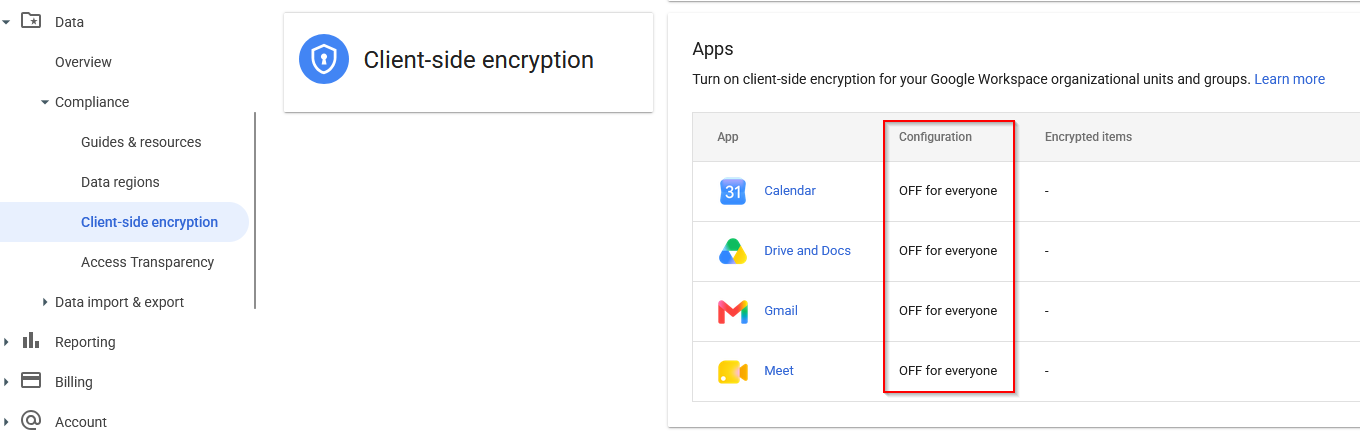
You can now select for which Google Workspace apps CSE should be enabled. By default, all apps are marked as "OFF for everyone".
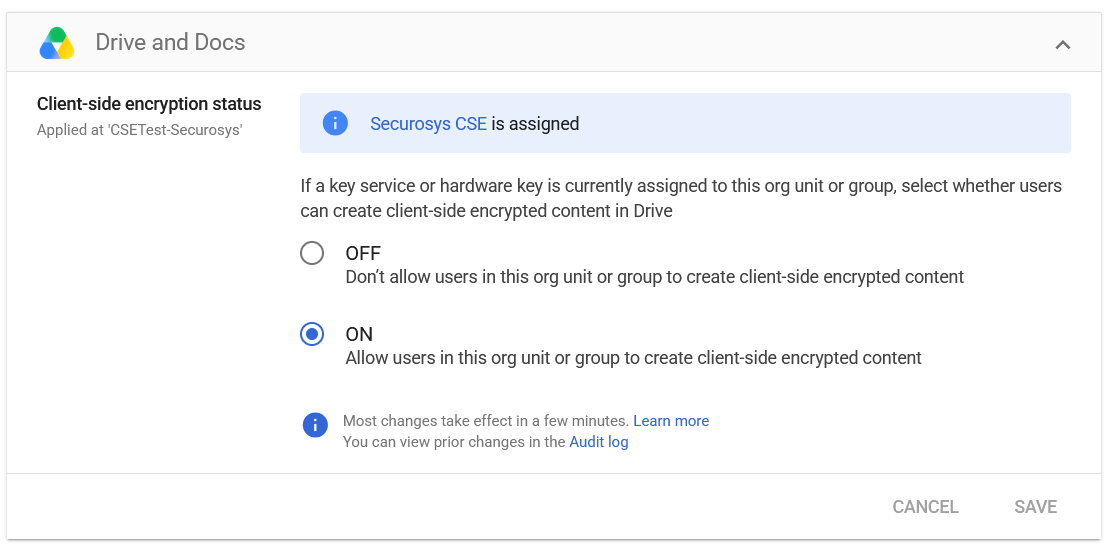
Navigate to each app for which you want to enable client-side encryption and switch it to "ON":
Next Steps
CSE is now ready to be used in your Google Workspace tenant. Your users can encrypt content by following the steps in this tutorial.
Further Reading
- Learn more about fine-tuning CSE configurations for your users from this Google Tutorial.
- Learn how to view CSE logs and reports.