Using CSE as a User
Once your Google Workspace administrator has enabled client-side encryption (CSE) with the Securosys Key Service, you can use CSE to encrypt content, such as files, emails, calendar events and meetings.
When creating encrypted content, certain features are not available. Each content type comes with disclaimers and clarifications of which features will not be possible.
Google Drive
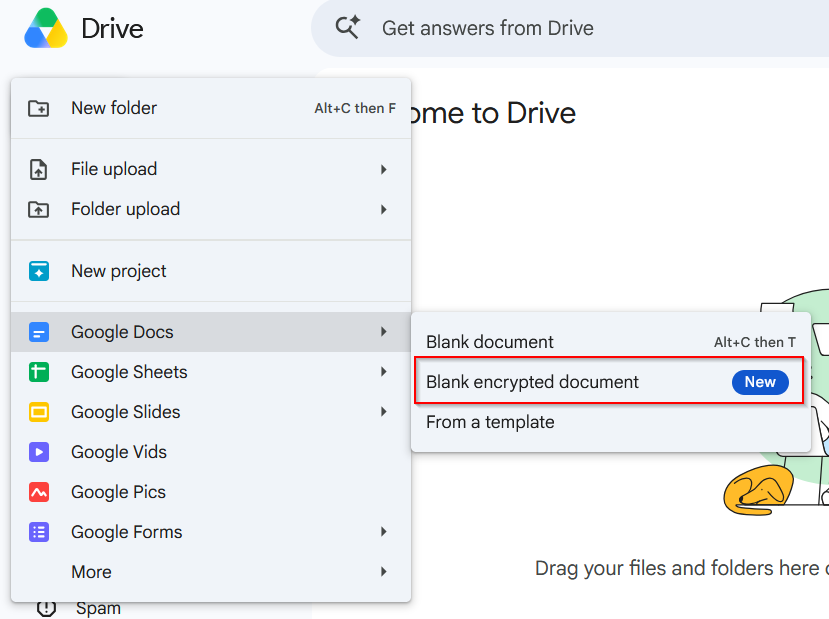
Navigate to Google Drive, create a new Google Docs, Sheets or Slides document, and select Blank encrypted document.
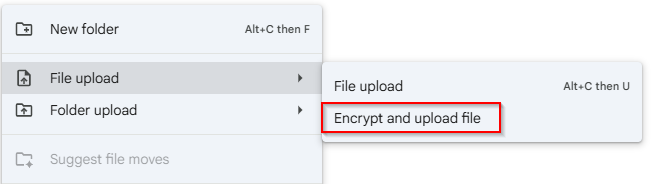
If you have an existing file that you want to encrypt and upload to Google Drive, click New and select File/Folder upload > Encrypt and upload file/folder.
Gmail
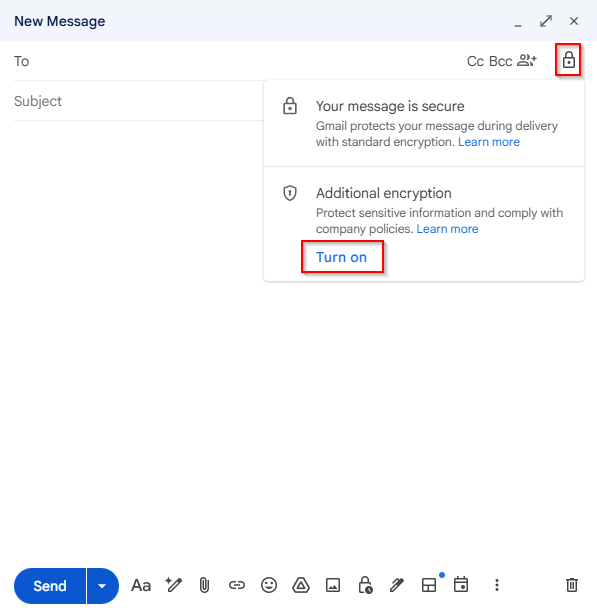
In Gmail, select Compose > lock icon. In the popup, click Turn on additional encryption.
Google Calendar
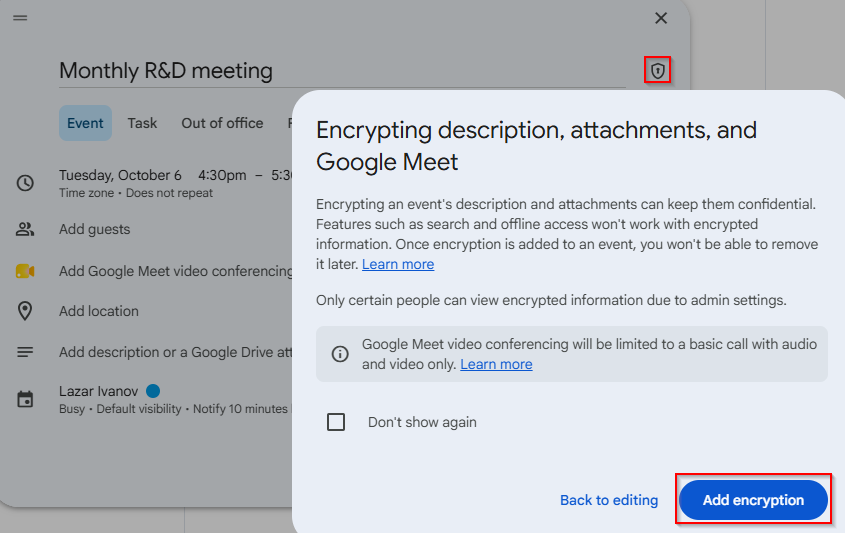
In Google Calendar, select Create > Event. In the top right corner, select the "shield" icon. In the popup, click Add encryption.
Google Meet
When you create a new Meet event, you can choose to encrypt it.
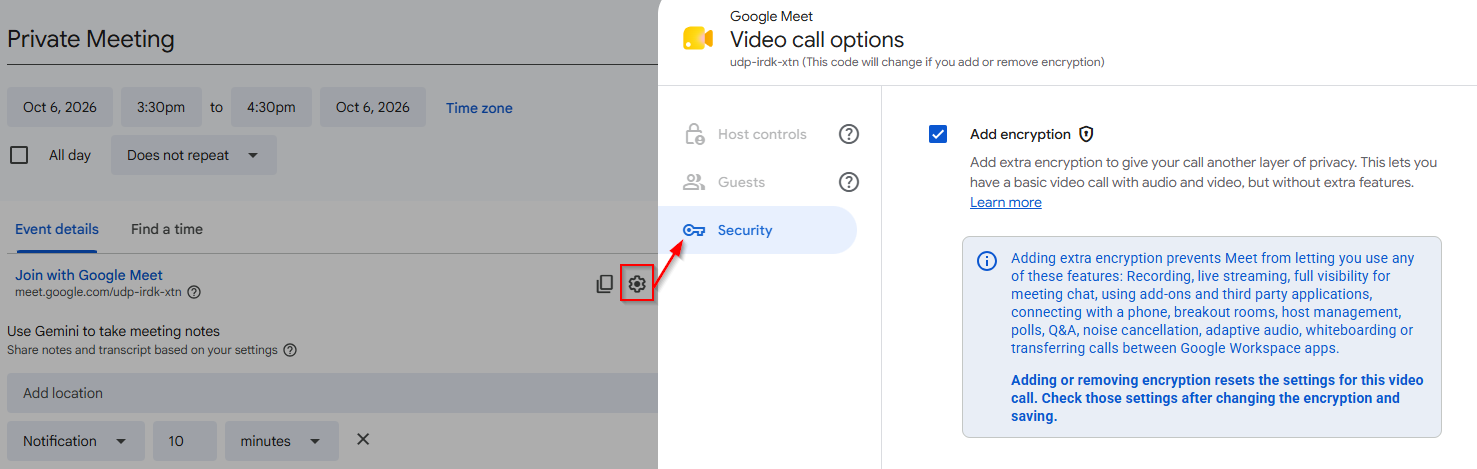
To encrypt all future meetings, go to Google Meet > New > Video call options > Security and check Add encryption.
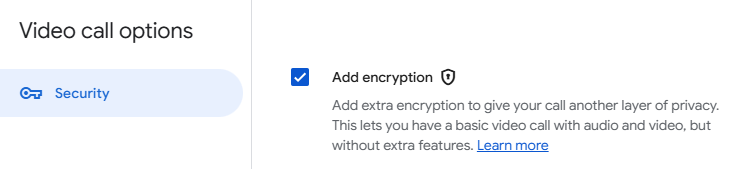
To encrypt a meeting on-demand, create a new meeting, select the "gear", then Security, then check Add encryption.