Configure Infisical PKI
This guide explains how to configure Infisical to generate and keep the signing keys of its certificate authorities (CAs) secure in a Securosys HSM. Infisical reaches the HSM through the Infisical Gateway which forwards requests via the Primus PKCS#11 Provider.
Ensure that you meet the prerequisites. The guide does not cover installing Infisical or issuing certificates, see the Infisical documentation for details.
Step 1: Create a machine identity for the Gateway
- In Infisical, go to Access Control > Machine Identities and create one with the Member organization role.
- Add Universal Auth to the identity, if not automatically added.
- Open the Universal Auth and create a client secret. Save the client secret and the general client ID.
Step 2: Configure group membership
To grant the Gateway access to the Primus PKCS#11 Provider, add its user to the primus group.
Replace <gateway-user> with the Unix user that you plan to run the Gateway as.
sudo usermod -aG primus <gateway-user>
Step 3: Register the Gateway
In Infisical, go to Organization Settings > Networking > Gateways, select Create Gateway, and then Generate deploy command.
For information on the network setup between Infisical and the Gateway, see the Infisical Gateway documentation.
Step 4: Start the Gateway
Start the Gateway using the infisical-pkcs11 CLI.
Pass the absolute path of the provider library with --pkcs11-module.
The INFISICAL_* variables are read by the CLI; the SECUROSYS_* variables are
read by the Primus PKCS#11 Provider when the Gateway loads it.
export INFISICAL_API_URL=${INFISICAL_URL}/api
export INFISICAL_UNIVERSAL_AUTH_CLIENT_ID=${CLIENT_ID}
export INFISICAL_UNIVERSAL_AUTH_CLIENT_SECRET=${CLIENT_SECRET}
export SECUROSYS_PKCS11_CONF=/etc/primus/primus.cfg
export SECUROSYS_SECRETS_CONF=/etc/primus/.secrets.cfg

infisical-pkcs11 gateway start ${GATEWAY_NAME} \
  --auth-method=universal-auth \
  --pkcs11-module=/usr/local/primus/lib/libprimusP11.so \
  --bind=${GATEWAY_ADDRESS}:8443 \
  --listen-address=${GATEWAY_ADDRESS}:8443
The Gateway cannot run inside from the published infisical/cli image, because
infisical/cli is built on Alpine Linux which uses musl, while the Primus PKCS#11 Provider is a glibc binary.
Loading the Provider inside that image will fail.
Keep the Gateway and Primus PKCS#11 Provider on a Linux host that has glibc.
Confirm the Gateway registered as PKCS#11-capable before you continue. In Organization Settings > Networking > Gateways it appears with its direct address, and the API reports the capability:
curl -H "Authorization: Bearer ${TOKEN}" ${INFISICAL_URL}/api/v2/gateways
"name":"${GATEWAY_NAME}", "directAddress":"${GATEWAY_ADDRESS}:8443", "capabilities":{"pkcs11":true}
The user that runs the Gateway must be able to read the provider library, which is usually restricted to the primus group.
If the path is wrong or unreadable, the Gateway exits at startup.
Run the Gateway as a service so that it restarts after a reboot. For high availability, run two or more PKCS#11-enabled Gateways in a Gateway Pool.
Step 5: Create the HSM connector
- Go to Certificate Manager > Settings > HSM Connectors and select Add HSM Connector.
- Enter a name, using lowercase letters and dashes.
- For the connection, select the Gateway from Step 2, or a Gateway Pool.
- Enter the Partition name and the PKCS#11 Password as the PIN. The key label prefix is optional.
- Select Add HSM Connector.
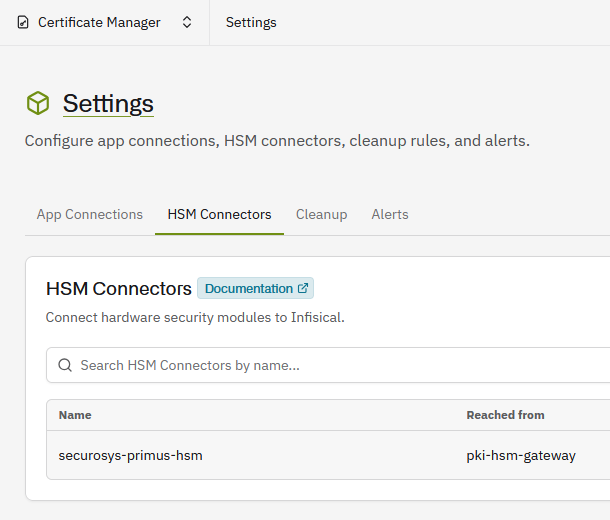
Infisical verifies the connection against the HSM before it saves the connector. If it created the connector, this means that all details provided were valid.
Step 6: Create a certificate authority with an HSM key
- In Certificate Manager, go to Certificate Authorities and create an internal CA.
- For the key source, select HSM and select the connector from Step 3.
- Enter the CA details.
- Select a key algorithm and validity and save.
Infisical generates the CA key pair in the Partition, labelled
${KEY_LABEL_PREFIX}ca-${CA_NAME}-${RANDOM_SUFFIX}.
The private key never leaves the HSM, and every signing operation of this CA runs in the HSM through the Gateway.
This includes the root certificate, intermediate CSRs, issued certificates and CRLs.
Step 7: Issue a certificate
A CA does not issue directly. Issuance goes through a certificate profile that is attached to an application:
- Go to Certificate Policies and create a policy, or use an existing one.
- Go to Certificate Profiles, create a profile, and select the CA from Step 4 together with that policy.
- Go to Applications, create an application, and attach the profile to it.
- In the Application Settings, configure the profile you attached and enable an enrollment method for the profile on that application, for example API.
- Under Certificate Requests, request a new certificate with the attributes and extensions you require.
Step 8: Testing
Every signature runs in the HSM, and the HSM reports key usage once the PKCS#11 session closes. Restart the Gateway after issuing, then check the usage of the CA key:
Name: ${KEY_LABEL_PREFIX}ca-${CA_NAME}-${RANDOM_SUFFIX}, Sign: 3
The count matches the number of signatures made since the Gateway last started: one for the CA's own root certificate, and one for each certificate issued.
You can list the keys inside your HSM Partition to verify that Infisical has created the CA key pair there:
pkcs11-tool --module /usr/local/primus/lib/libprimusP11.so --token-label ${PARTITION_NAME} --login --list-objects --type privkey
  label:      ${KEY_LABEL_PREFIX}ca-${CA_NAME}-${RANDOM_SUFFIX}
  Usage:      sign
  Access:     sensitive, always sensitive, never extractable, local
Finally, verify a certificate against the CA certificate:
openssl verify -CAfile ${CA_CERTIFICATE} ${CERTIFICATE}
The HSM and the Gateway are hard dependencies for this CA. If the Gateway or the HSM is unavailable, the CA cannot issue certificates. If the Partition or the CA key is lost, the CA cannot be recovered. Deleting a CA removes only the reference in Infisical, but the key stays in the Partition. Make sure the Partition is backed up or replicated before you issue production certificates.