Configuration of the Securosys Key Manager with Kubernetes
This guide explains how to configure the Securosys Key Manager UI, including:
- Configure Load Balancer & TLS
- Configure User Authentication (Frontend)
- Configure Multi-Tenancy
- Configure mTLS with TSB (Backend)
- Configure AI Chat Assistant (MCP)
- Configure Audit Logging
Load Balancer & TLS
Create a self-signed certificate and store it as a Kubernetes TLS secret:
# Generate self-signed certificate (valid for 1 year)
openssl req -x509 -nodes -days 365 -newkey rsa:2048 \
  -keyout tls.key \
  -out tls.crt \
  -subj "/CN=kms-app.kms-deployment.svc.cluster.local/O=Securosys"

# Create the Kubernetes TLS secret
kubectl create secret generic kms-tls-sensitive \
  --from-file=tls.crt=tls.crt \
  --from-file=tls.key=tls.key \
  -n kms-deployment

# Clean up local files
rm tls.key tls.crt
Update values.yaml:
kms:
  envFrom:
    - secretRef:
        name: kms-tls-sensitive
Enable tls.enabled to terminate TLS on the Key Manager UI:
  tls:
    enabled: true
Deploy with Helm:
# 1. Deploy with Helm
helm upgrade --install kms-app -n kms-deployment -f kms-default-values.yaml \
  oci://securosys.jfrog.io/charts/kms

# 2. Wait for pods to be ready
kubectl get pods -n kms-deployment -w

# 3. create a port-forwarding rule to access Key Manager outside of the cluster (give it some time...)
kubectl port-forward svc/kms-app-nginx 8443:443 -n kms-deployment
Access the UI at https://localhost:8443.
Run minikube tunnel in a separate terminal to assign an EXTERNAL-IP to the kms-app-nginx service,
then access the UI at https://EXTERNAL-IP:443.
Authentication (Frontend)
The Key Manager UI supports multiple authentication mechanisms. When configuring choose either HSM Authentication or Managed Authentication:
- Microsoft Entra ID - Managed (OAuth 2.0)
- Keycloak - Managed (OpenID Connect)
- GitHub OAuth - Managed (OAuth 2.0)
- Local Service Users - HSM
Update values.yaml:
- Microsoft Entra ID
- Keycloak
- GitHub
- HSM Authentication
Register an OAuth app in Azure App Registrations:
-
Set the Redirect URI to your Key Manager UI URL, e.g. http://localhost:8501/
-
Add a client secret under Certificates & Secrets
-
Add the groups claim in Token configuration
-
Grant API permissions:
email,offline_access,openid,profile,User.Read(Delegated)
Create a secret
kms-oauth-sensitive:Replace the:
-
REDIRECT_URI-> The URI of the Key Manager UI (must match the azure app configuration) -
YOUR_TENANT_ID-> TheDirectory (tenant) ID -
YOUR_MICROSOFT_CLIENT_ID-> TheApplication (client) IDof the app registration on Microsoft. -
YOUR_MICROSOFT_CLIENT_SECRET-> Thesecretconfigured underCertificate & secrets. -
ALLOWED_GROUP_ID-> The Group ID of the group allowed to connect to the app.kubectl create secret generic kms-oauth-sensitive \-n kms-deployment \--from-literal=authentication.oauth.microsoft.redirect_uri='REDIRECT_URI' \--from-literal=authentication.oauth.microsoft.tenant_id='YOUR_TENANT_ID' \--from-literal=authentication.oauth.microsoft.client_id='YOUR_MICROSOFT_CLIENT_ID' \--from-literal=authentication.oauth.microsoft.client_secret='YOUR_MICROSOFT_CLIENT_SECRET' \--from-literal=authentication.oauth.microsoft.allowed_group_id='ALLOWED_GROUP_ID'Update
values.yaml:envFrom:- secretRef:name: kms-oauth-sensitiveSet the
[authentication].providertooauth.authentication:enabled: true# Supported values:# "oauth" - Microsoft Entra ID, GitHub OAuth, Keycloak (OpenID Connect)# "hsm_auth" - Hardware Security Module users# "" - User Authentication disabledprovider: 'oauth'
Create a secret kms-oauth-sensitive:
Replace the:
-
KEYCLOAK_SERVER_URL-> Your Keycloak server URL (e.g.,https://sso.example.com) -
KEYCLOAK_REALM-> Your Keycloak realm name -
KEYCLOAK_CLIENT_ID-> The client ID registered in Keycloak -
REDIRECT_URI-> The URI of the Key Manager UI -
ALLOWED_ROLE-> (Optional) Restrict access to a specific Keycloak rolekubectl create secret generic kms-oauth-sensitive \-n kms-deployment \--from-literal=authentication.oauth.keycloak.server_url='KEYCLOAK_SERVER_URL' \--from-literal=authentication.oauth.keycloak.realm='KEYCLOAK_REALM' \--from-literal=authentication.oauth.keycloak.client_id='KEYCLOAK_CLIENT_ID' \--from-literal=authentication.oauth.keycloak.redirect_uri='REDIRECT_URI' \--from-literal=authentication.oauth.keycloak.allowed_role='ALLOWED_ROLE'Update
values.yaml:envFrom:- secretRef:name: kms-oauth-sensitiveSet the
[authentication].providertooauth.authentication:enabled: true# Supported values:# "oauth" - Microsoft Entra ID, GitHub OAuth, Keycloak (OpenID Connect)# "hsm_auth" - Hardware Security Module users# "" - User Authentication disabledprovider: 'oauth'tipWhen using Keycloak with multi-tenancy, HSM partitions can be automatically mapped from Keycloak roles assigned to the user.
Create a secret kms-oauth-sensitive:
Replace the:
-
REDIRECT_URI-> The URI of the Key Manager UI -
YOUR_GITHUB_CLIENT_ID-> The client ID from your GitHub OAuth app -
YOUR_GITHUB_CLIENT_SECRET-> The client secret from your GitHub OAuth app -
ALLOWED_ORGANIZATION-> (Optional) Restrict access to a specific GitHub organizationkubectl create secret generic kms-oauth-sensitive \-n kms-deployment \--from-literal=authentication.oauth.github.redirect_uri='REDIRECT_URI' \--from-literal=authentication.oauth.github.client_id='YOUR_GITHUB_CLIENT_ID' \--from-literal=authentication.oauth.github.client_secret='YOUR_GITHUB_CLIENT_SECRET' \--from-literal=authentication.oauth.github.allowed_organization='ALLOWED_ORGANIZATION'Update
values.yaml:envFrom:- secretRef:name: kms-oauth-sensitiveSet the
[authentication].providertooauth.authentication:enabled: true# Supported values:# "oauth" - Microsoft Entra ID, GitHub OAuth, Keycloak (OpenID Connect)# "hsm_auth" - Hardware Security Module users# "" - User Authentication disabledprovider: 'oauth'
Set the [authentication].provider to hsm_auth.
  authentication:
      enabled: true
      # Supported values:
        #   "oauth"      - Microsoft Entra ID, GitHub OAuth, Keycloak (OpenID Connect)
        #   "hsm_auth"   - Hardware Security Module users
        #   ""           - User Authentication disabled
      provider: 'hsm_auth'
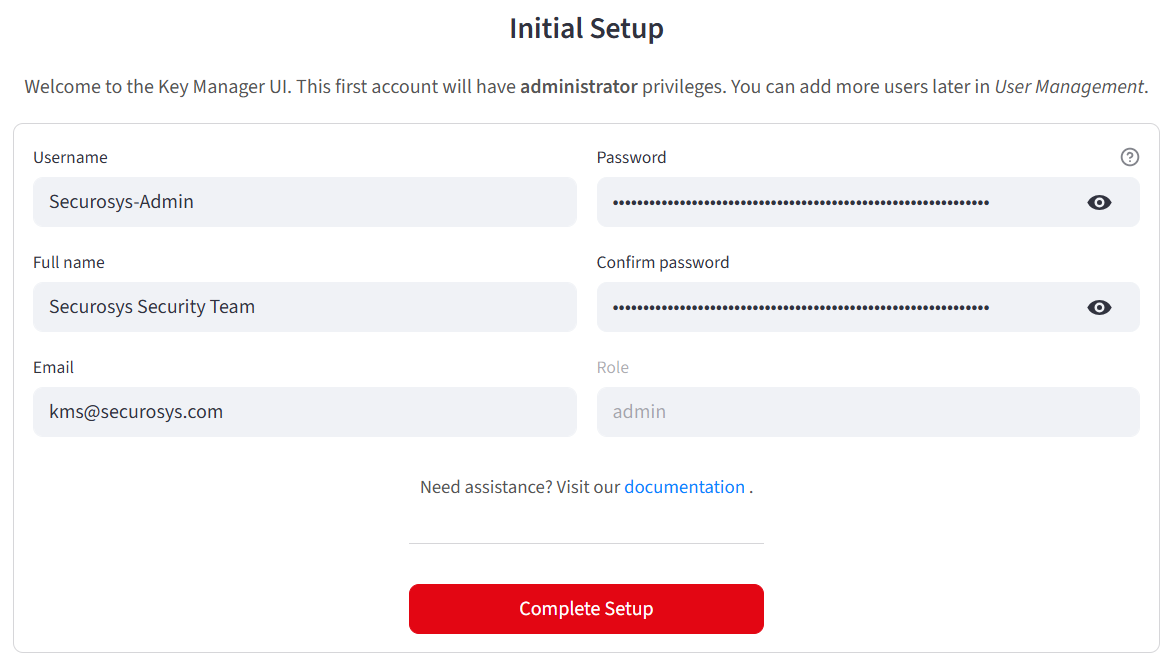
When using HSM Authentication, after starting up the application for the first time, you will be prompted to create your first user, who will be assigned the admin role.
Redeploy:
helm upgrade --install kms-app -n kms-deployment -f kms-default-values.yaml \
  oci://securosys.jfrog.io/charts/kms
(Optional):
kubectl port-forward svc/kms-app 8501:8501 -n kms-deployment
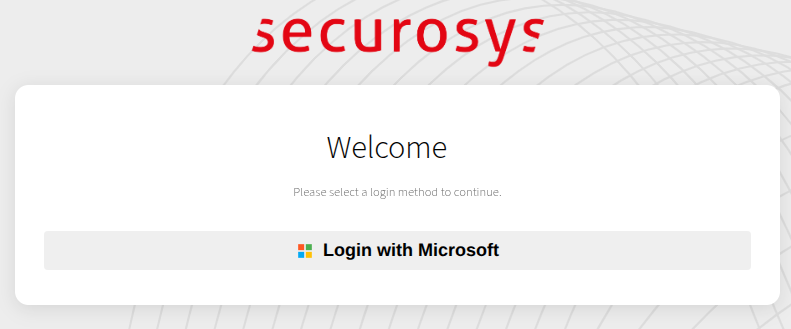
Verify your installation: Upon accessing the Key Manager UI, an authentication prompt should appear.
Multi-Tenancy
Multi-tenancy allows multiple teams or organizations to share a single Key Manager deployment while maintaining strict partition-based isolation of cryptographic material.
Update values.yaml to set the vault type:
- HSM Data Objects
- Azure Key Vault
- GCP Secret Manager
kms:
  multi_tenancy:
    vault_type: "hsm"                           # Store partition credentials as HSM data objects
Partition credentials are stored as data objects on the management HSM partition.
kms:
  multi_tenancy:
    vault_type: "azure_key_vault"               # Store partition credentials in Azure Key Vault
kms:
  multi_tenancy:
    vault_type: "gcp_secret_manager"            # Store partition credentials in GCP Secret Manager
When multi-tenancy is enabled, users can switch between HSM partitions at runtime via the sidebar partition selector. Each partition can be assigned a display name and color indicator.
When using OAuth providers (Microsoft Entra ID, Keycloak), partitions can be automatically mapped from user roles or group memberships.
Redeploy:
helm upgrade --install kms-app -n kms-deployment -f kms-default-values.yaml \
  oci://securosys.jfrog.io/charts/kms
mTLS with TSB (Backend)
If your Transaction Security Broker (TSB) requires mutual TLS, configure the Key Manager to present a trusted client certificate.
To learn how to enable mTLS, see the TSB documentation.
1. Prepare Certificates
From the TSB Keystore and Truststore setup script, ensure you have:
client.crt— Client certificateclient.key— Client private keyserver.crt— TSB server certificate (only if self-signed or using a private CA)
Create a Kubernetes secret:
kubectl create secret generic kms-tsb-mtls-sensitive \
  --from-file=client.crt=client.crt \
  --from-file=client.key=client.key \
  --from-file=server.crt=server.crt \
  -n kms-deployment
2. Update Configuration
Comment out the secret reference in your values.yaml:
envFrom:
  - secretRef:
      name: kms-tsb-mtls-sensitive
Set TSB connection parameters:
# HSM / TSB Configuration
tsb:
  rest_api_url: "https://tsb-server.tsb-deployment.svc.cluster.local:8080"
  mtls:
    enabled: true
    verify_ca_certificate: true                    # Always verify the TSB server certificate (recommended)
    ca_certificate_path: "/app/mtls/server.crt"    # Leave empty if signed by a public CA
Example endpoints:
| Environment | URL |
|---|---|
| Local | https://localhost:8080 |
| Same cluster | https://tsb-server.tsb-deployment.svc.cluster.local:8080 |
| Securosys Cloud (Prod) | https://rest-api.cloudshsm.com |
| Securosys Cloud (Sandbox) | https://sbx-rest-api.cloudshsm.com |
Redeploy the Key Manager:
helm upgrade --install kms-app -n kms-deployment -f kms-default-values.yaml \
  oci://securosys.jfrog.io/charts/kms
(Optional) Port-forward for testing:
kubectl port-forward svc/kms-app 8501:8501 -n kms-deployment
AI Chat Assistant (MCP)
The Key Manager UI includes an optional AI-powered chat assistant that uses the Model Context Protocol (MCP) to interact with HSM operations using natural language.
Update values.yaml:
kms:
  mcp:
    enabled: true
    url: "http://mcp-server:8080"                 # MCP server URL (leave empty to hide the Assistant tab)
When enabled, the assistant supports multiple LLM providers (Anthropic Claude, OpenAI GPT, Google Gemini, and local LLMs) that can be switched at runtime from the Chat Assistant tab.
Redeploy:
helm upgrade --install kms-app -n kms-deployment -f kms-default-values.yaml \
  oci://securosys.jfrog.io/charts/kms
This requires a deployment of the Securosys MCP Server. Please contact us if you are interested in this.
Audit Logging
The Key Manager UI can produce structured audit logs in JSON Lines format, covering all operations (authentication, key management, certificate management, crypto operations, and user management).
Update values.yaml:
kms:
  audit:
    enabled: true
When enabled, audit events are written to rotating log files that can be analyzed through the Compliance tab or exported for external SIEM integration.
Redeploy:
helm upgrade --install kms-app -n kms-deployment -f kms-default-values.yaml \
  oci://securosys.jfrog.io/charts/kms
Troubleshooting
To reset the deployment:
helm uninstall kms-app -n kms-deployment
kubectl delete secret -n kms-deployment kms-hsm-credentials
kubectl delete secret -n kms-deployment kms-local-user-sensitive
kubectl delete secret -n kms-deployment kms-oauth-sensitive
kubectl delete secret -n kms-deployment kms-tsb-mtls-sensitive
Reinstall:
helm upgrade --install kms-app -n kms-deployment -f kms-default-values.yaml \
  oci://securosys.jfrog.io/charts/kms
For graphical debugging:
minikube dashboard