Auto-Unseal with REST
This guide describes how to set up auto-unsealing of an OpenBao instances with Primus HSM through REST.
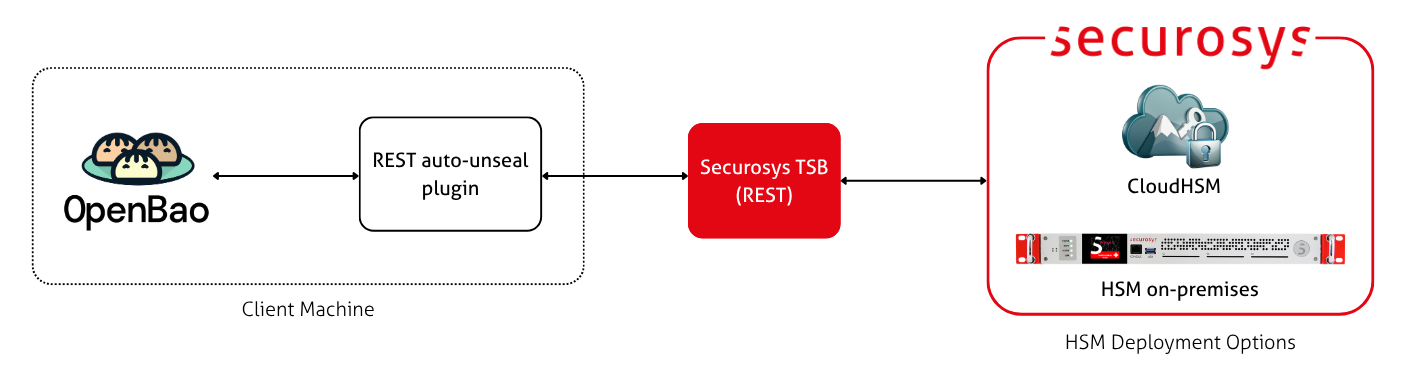
Prerequisites
- A Securosys Primus HSM or CloudHSM.
- A Securosys TSB installation.
- In CloudHSM, Securosys hosts the TSB for you.
- For on-premise HSMs, follow the TSB installation guide.
- You need: TSB URL/IP, access credentials (depending on the TSB configuration: JWT, API keys, mTLS key/cert)
- An OpenBao installation.
- This can be an existing installation (to be migrated to auto-unsealing) or a fresh, uninitialized installation.
- See the OpenBao installation guide for instructions.
This guide requires OpenBao 2.6.0 (or later) because it uses the
new kms plugin type.
Step 1: Create a key in the HSM
Create the unseal key on the HSM using the POST /v1/key endpoint.
You have to choose:
- Which encryption algorithm (AES, EC, RSA, ...)?
- SKA keys don't support symmetric algorithms such as AES.
- SKA key or normal key?
- You cannot "upgrade" a normal key to SKA later. You will need to generate a new key and migrate the seal to the new key.
- You can generate an SKA key with an empty policy (that allows everything). This allows you to start with the behaviour of a normal key and add a meaningful policy later.
For more details, please see:
- AES (non-SKA)
- EC (SKA)
export JWT="changeme"
curl -L "https://sbx-rest-api.cloudshsm.com/v1/key" \
    -H "Authorization: Bearer $JWT" \
    --json '{
        "label": "bao-root-key-aes",
        "algorithm": "AES",
        "keySize": 256,
        "attributes": {
            "encrypt": true,
            "decrypt": true,
            "verify": true,
            "sign": true,
            "wrap": true,
            "unwrap": true,
            "extractable": false,
            "modifiable": true,
            "destroyable": false,
            "sensitive": true,
            "copyable": false,
            "rollover": false
        },
        "policy": null
    }'
export JWT="changeme"
curl -L "https://sbx-rest-api.cloudshsm.com/v1/key" \
    -H "Authorization: Bearer $JWT" \
    --json '{
        "label": "bao-root-key-ec-ska",
        "algorithm": "EC",
        "algorithmOid": "1.2.840.10045.2.1",
        "curveOid": "1.3.132.0.10",
        "keySize": 0,
        "attributes": {
            "encrypt": true,
            "decrypt": true,
            "verify": true,
            "sign": true,
            "wrap": true,
            "unwrap": true,
            "extractable": false,
            "modifiable": true,
            "destroyable": false,
            "sensitive": true,
            "copyable": false,
            "rollover": false
        },
        "policy": {
            "ruleUse": null,
            "ruleBlock": null,
            "ruleUnblock": null,
            "ruleModify": null,
            "keyStatus": {
                "blocked": false
            }
        }
    }'
If you lose this key, you will not be able to unseal your OpenBao instance, and will thus lose your OpenBao data. Make sure that you have a backup of your HSM Partition.
The command above sets destroyable=false, which prevents the key from being deleted via the API.
When set, the only way to delete this key is to delete the entire Partition.
If you don't set destroyable=false, you should enable Key Invalidation
in your Partition.
Step 2: Get the securosyshsm plugin
Clone the GitHub repository of the plugin:
git clone https://github.com/securosys-com/securosys-openbao-autounseal-plugin.git
Compile the plugin. This requires Go to be installed.
cd securosys-openbao-autounseal-plugin
go build -o openbao-plugin-securosyshsm .
Calculate the SHA-256 digest of the plugin binary:
sha256sum openbao-plugin-securosyshsm
Create the plugin directory and move the binary there. Lock down the filesystem permissions. When using containers, mount the plugin directory as a volume.
mkdir -p /opt/openbao/plugins
install -m 0755 openbao-plugin-securosyshsm /opt/openbao/plugins/openbao-plugin-securosyshsm
chown -R openbao:openbao /opt/openbao/plugins
Step 3: Configure the securosyshsm plugin
Declare the plugin in your openbao.hcl to let OpenBao know about it.
plugin_directory = "/opt/openbao/plugins"
plugin_auto_register = true

plugin "kms" "securosyshsm" {
  command     = "openbao-plugin-securosyshsm"
  version     = "v1.0.1"
  sha256sum   = "e85b98f4ea26f9114e3cdf1e1cab38fff44fd842a57cc8bbb4d5e34af3668bcf"
}
See the OpenBao plugin system
and the plugin stanza
documentation for more information about plugin installation.
Step 4: Configure the securosyshsm seal
Define the securosyshsm seal in the OpenBao configuration.
Here is a minimal example:
seal "securosyshsm" {
  key_label        = "bao-root-key-ec-ska"
  tsb_api_endpoint = "https://sbx-rest-api.cloudshsm.com/"
  auth             = "TOKEN"
  bearer_token     = "changeme_jwt_value"
}
Here is a full template, showing all available options:
seal "securosyshsm" {
  key_label        = "bao-root-key-ec-ska"
  # key_password   = "changeme" # optional, if you set a key password

  tsb_api_endpoint = "https://sbx-rest-api.cloudshsm.com/"

  # Authorization type: TOKEN, CERT, or NONE.
  auth         = "TOKEN"
  bearer_token = "changeme_jwt_value"

  # For certificate authentication (mTLS), use:
  # auth      = "CERT"
  # cert_path = "/path/to/client.crt"
  # key_path  = "/path/to/client.key"

  # For unauthenticated test endpoints, use:
  # auth = "NONE"

  # Optional application key pair for request signatures.
  # Provide private_key and public_key without PEM headers.
  # application_key_pair = "{\"private_key\":\"...\",\"public_key\":\"...\"}"

  # Optional TSB API keys. Multiple keys can be provided per token type.
  # api_keys = "{\"key_management_token\":[\"key-management-api-key\"],\"key_operation_token\":[\"key-operation-api-key\"],\"service_token\":[\"service-api-key\"]}"

  # Interval in seconds for polling the SKA approval status. Must be greater than 0.
  check_every = 5

  # Maximum time in seconds to wait for SKA approval. Must be greater than `check_every`.
  approval_timeout = 60
}
For more information on mTLS, API keys, and request signatures, see the TSB authorization documentation.
Step 5: Initialize OpenBao
Finally, (re-)start OpenBao so that it picks up the configuration changes.
Then initialize OpenBao to create the seal:
bao operator init
This returns:
Recovery Key 1: mQA3ASf8P/9S...
Recovery Key 2: Q9pYb3Ge+9a6...
Recovery Key 3: vRt0uHy1ms0e...
Recovery Key 4: IBL3zUtDe+kj...
Recovery Key 5: UK9GSdqpzXEy...

Initial Root Token: s.dCmfe4zmwxmsEE...

Success! Vault is initialized

Recovery key initialized with 5 key shares and a key threshold of 3. Please
securely distribute the key shares printed above.
Securely note down the recovery keys and the root token!
If your instance is already initialized with another seal, follow the seal migration guide to migrate to the PKCS#11 seal.
Confirm Working Auto-Unsealing
To test that auto-unseal is working, restart OpenBao.
If you used an SKA key with a policy that contains some approvers,
the TSB will collect the approvals and eventually forwards the request to the HSM.
The securosyshsm plugin polls the TSB, waiting for the result.
Once the unseal succeeds, you should see the following in the OpenBao logs ("stored unseal key"):
systemd[1]: Started openbao.service - "OpenBao - A tool for managing secrets".
bao[154960]: 2026-07-31T10:59:30.458+0200 [INFO]  core: stored unseal keys supported, attempting fetch
bao[154960]: 2026-07-31T10:59:30.597+0200 [INFO]  core.cluster-listener.tcp: starting listener: listener_address=0.0.0.0:8201
bao[154960]: 2026-07-31T10:59:30.599+0200 [INFO]  core.cluster-listener: serving cluster requests: cluster_listen_address=[::]:8201
bao[154960]: 2026-07-31T10:59:30.600+0200 [INFO]  core: post-unseal setup starting
bao[154960]: 2026-07-31T10:59:30.606+0200 [INFO]  core: loaded wrapping token key
bao[154960]: 2026-07-31T10:59:30.606+0200 [INFO]  core: upgrading plugin information: plugins=[]
bao[154960]: 2026-07-31T10:59:30.606+0200 [INFO]  core: successfully setup plugin catalog: plugin-directory=/opt/openbao/plugins
bao[154960]: 2026-07-31T10:59:30.606+0200 [INFO]  core.plugins: starting declarative plugin registration
bao[154960]: 2026-07-31T10:59:30.610+0200 [INFO]  core.plugins: declarative plugin registration completed
bao[154960]: 2026-07-31T10:59:30.816+0200 [INFO]  core: post-unseal setup complete
bao[154960]: 2026-07-31T10:59:30.816+0200 [INFO]  core: vault is unsealed
bao[154960]: 2026-07-31T10:59:30.816+0200 [INFO]  core: unsealed with stored key
Additionally, bao status should show:
$ bao status
Key                      Value
---                      -----
Seal Type                securosys-hsm
Recovery Seal Type       shamir
Initialized              true
Sealed                   false
Total Recovery Shares    5
Threshold                3
Version                  2.6.1
Commit Date              2026-07-22T14:22:20Z
Storage Type             file
Cluster Name             vault-cluster-38522aac
Cluster ID               cee4e2e1-c4ba-616b-88f7-4d12ac69e6a8
HA Enabled               false