How VaultCode works
This page explains in more detail how VaultCode works conceptually. This should help you understand how VaultCode interacts with your code, how it runs your code, and how it attests to the runtime environment. For an introduction to VaultCode, see the overview.
Basics
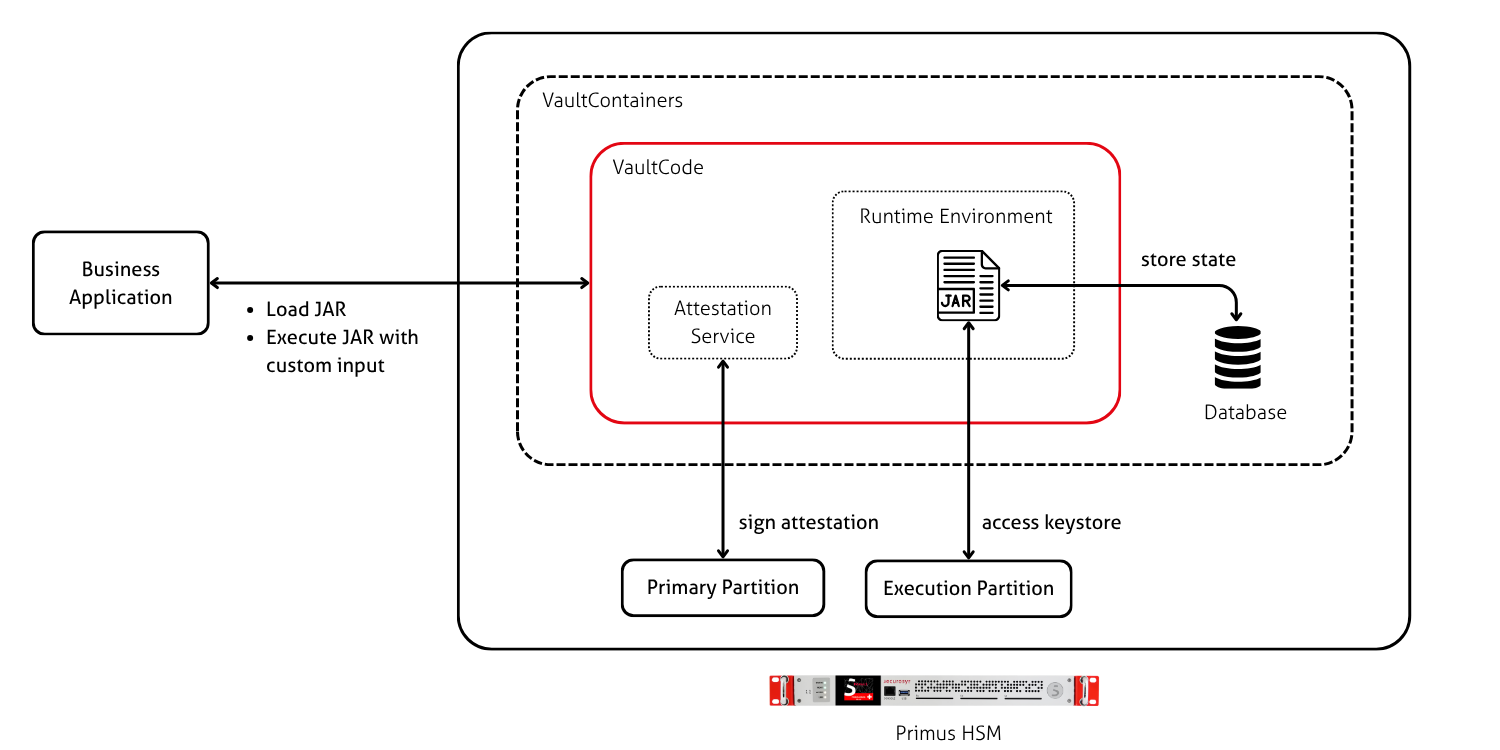
VaultCode is a Java application that is deployed as a Docker container. Internally, it communicates with the Primus HSM over the JCE provider. Externally, it exposes a REST API that allows you to interact with VaultCode.
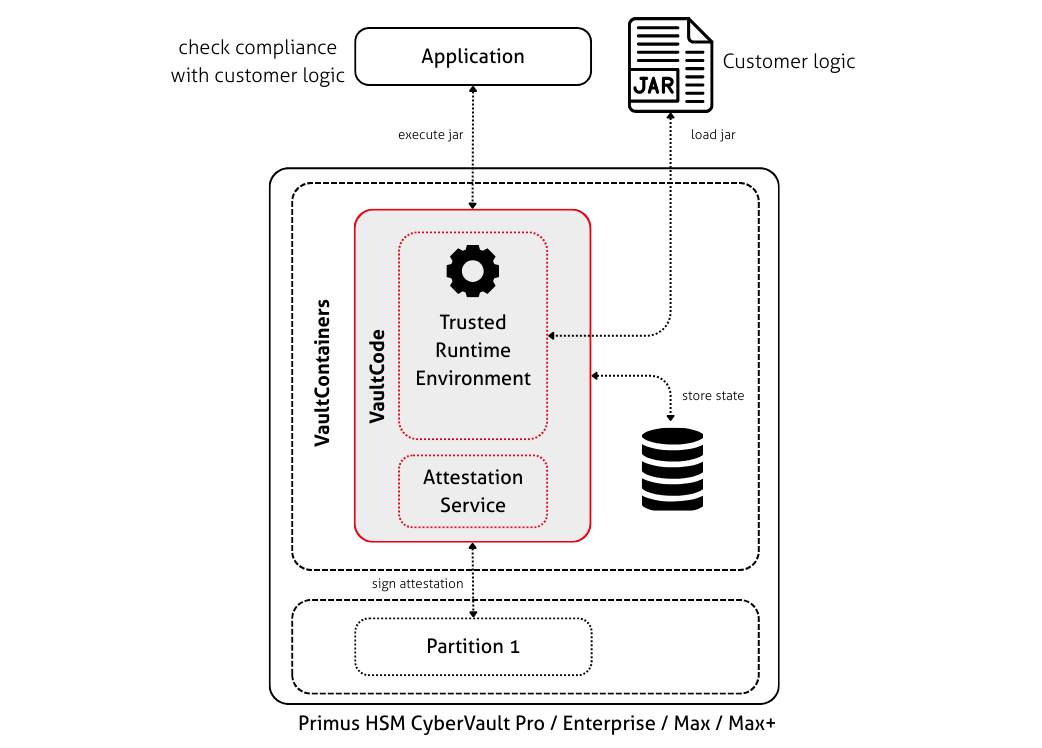
VaultCode should run inside a Primus HSM (otherwise, it cannot attest to the runtime environment!). VaultCode runs on top of the VaultContainers platform.
Once VaultCode is installed, you can upload your own executables. These executables can be written in JVM-based languages and compiled to a JAR file (Java, Kotlin, ...) or in languages that can compile to a WASM file (Go, Rust, ...). ¹
The execution code is uploaded via the
POST /api/v1/upload_execution_code endpoint
and run via the POST /api/v1/execute endpoint with the desired input.
¹ WASM requires VaultCode 2.4.0.
Input and output
Your executables communicate with the VaultCode runtime over stdin and stdout.
Input: Your executable should read input from stdin. The VaultCode runtime passes not only the input received by the outside execution trigger, but also additional data, such as database connection information or HSM Partition credentials. See this code sample for the exact input definition.
Output:
Your executable should write output to stdout.
The VaultCode runtime captures stdout and signs it with the output key (see below).
The result is returned to the caller, in the format defined by the
POST /api/v1/execute endpoint.
If the output is intended as an automated approval, the output must be formatted in the way that the HSM expects an unsigned approval token. Once VaultCode signs the output, it becomes a signed approval. See this code sample for details.
Running different executables
Each VaultCode instance can only run one executable at a time. However, you can swap the executable by uploading a new executable. You can also run multiple VaultCode instances in parallel, and they can run JAR or WASM executables on the same HSM, as long as the correct configuration is uploaded for each container. The maximum number of instances varies by HSM model.
The choice of executables that are allowed to run is security-relevant.
Therefore, the executables need to be explicitly allow-listed
in the VaultCode configuration files (application-xyz.yml), by:
- Allow-listing the hash of the executable, or by
- Allow-listing a public key. Any executable accompanied by a signature that can be verified with this key will be allowed.
When running VaultCode in a Primus HSM, changes to the configuration file need to be authorised by the Security Officers (SOs). Thus the SOs have control over which executables and which signing keys they want to allow.
The second option is useful if you have an existing code signing setup, and you don't want manual SO interaction for every code change. This is the recommended setup for development and CI/CD pipelines (see the loading tutorial).
VaultCode System Keys
VaultCode uses four asymmetric key pairs, serving the following purposes:
- Output key: This key is used to sign the output that your executable generates. Thus when using VaultCode for automated approval, you need to add this public key as one of the approver keys to the SKA key that you want to protect.
- Timestamp key: This key is used to sign the timestamp of an execution.
- Evidence key: The "evidence" is the runtime environment of an execution, such as the HSM name and firmware version. This key is used to sign the evidence.
- Encryption key: This key enables you to encrypt your executable before uploading it. VaultCode then decrypts the executable using the corresponding private key.
You can obtain these keys by calling the GET /api/v1/get_public_key endpoint.
VaultCode stores these keys on the Primary Partition.
If desired, you can pre-create the keys.
Otherwise, if the keys don't exist when VaultCode starts, it will create them.
You can configure their labels and algorithms via the application.yml.
See the application-vault-code-template.yml for examples.
The following algorithms are supported:
| Key | Supported algorithms |
|---|---|
| Output key | RSA, EC, ML-DSA² |
| Timestamp key | RSA, EC |
| Evidence key | RSA, EC |
| Encryption key | RSA, EC |
² ML-DSA requires VaultCode 2.2.2. Using the output key as an SKA approver key requires HSM firmware 3.2.13, 3.3.6.
Accessing the Keystore
One VaultCode instance can connect to two HSM Partitions:
- Primary Partition: This Partition stores the keys that the VaultCode runtime uses to sign attestations about the environment (that is, the four keys mentioned above).
- Execution Partition: This Partition can be accessed by the executable that you upload. The VaultCode runtime provides your executable with the necessary credentials. ³
These Partitions can be different or the same.
The VaultCode operator defines the Partitions in the application-xyz.yml with the Partition name and a Setup Password.
The VaultCode runtime takes care of fetching and persisting the Permanent User Secret for both Partitions.
Please see the following tutorials:
- Configure the Execution Partition (for administrators)
- Connect to the Execution Partition (for developers)
³ The Execution Partition feature requires VaultCode 2.2.0.