Installation
This page will guide you through connecting your Securosys KMIP Server to an existing Veeam Backup & Recovery instance.
This guide will not go over the steps of installing and configuring the VBR or any of it's components. Instead, it assumes that VBR is already present in your environment and it will focus on setting up the integration with your Securosys KMIP Server.
Prerequisites
This guide was tested and verified on the following platforms and software versions:
- Veeam Software Appliance v13
- Tested on RHEL 9
- Tested on Windows Server DC 2022
- Securosys Primus HSM with firmware v3.2.11+ or CloudHSM (compatible)
- CyberVault KMS v1.1.0 (includes the KMIP Server v1.1.0)
- KMIP Server credentials (mTLS client keystore and server truststore). Learn how to issue them with CyberVault KMS.
- The VBR Desktop Console
is required for KMIP integration.
- VBR does not support this integration via Browser.
The Securosys KMIP Server is Veeam Ready certified.
KMIP Server Settings
Make sure your Securosys KMIP Server supports the following (configurable through the Key Manager UI):
- Key Management Interoperability Protocol (KMIP) Profile v1.4
- TLS enabled protocols:
TLSv1.2(not enabled by default) - TLS cipher suites:
TLS_ECDHE_RSA_WITH_AES_256_GCM_SHA384, TLS_ECDHE_RSA_WITH_AES_128_GCM_SHA256(not enabled by default)
Adding KMIP Server Details
The instructions below apply to both Linux and Windows installations. As all the work is performed directly within the application, the instructions are identical for both cases.
In the VBR application, from the main menu, navigate to Credentials and Passwords > Key Management Servers. Select Add and provide the details of your KMIP Server:
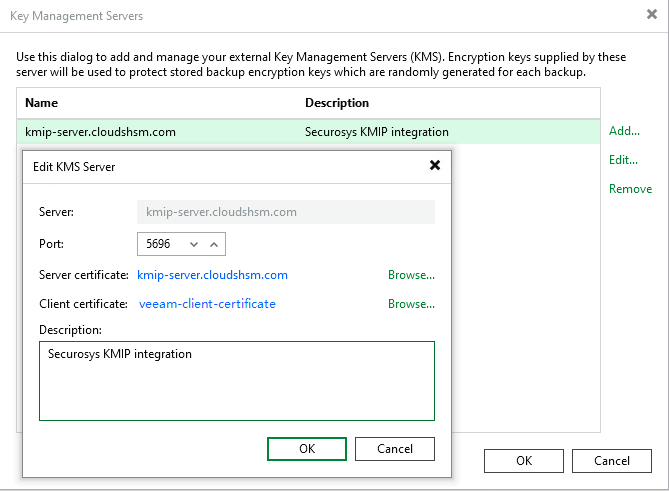
- Server: specify the FQDN, IPv4 or IPv6 address of the server.
- Port: Default port is
5696 - Server certificate: Import the KMIP Server certificate. (Optionally, import from the certificate store for Windows)
- Client Certificate: Import the VBR client certificate issued by your KMIP administrator, follow this tutorial to create a KMIP User. (Optionally, import from the certificate store for Windows)
- Description (optional): provide a meaningful description of the KMIP Server.
Enabling KMIP for Encryption
Next, enable backup file encryption. Edit an existing job or create a new one. Define the details of the backup job as per your needs. On the Storage tab, fill out the details as shown:
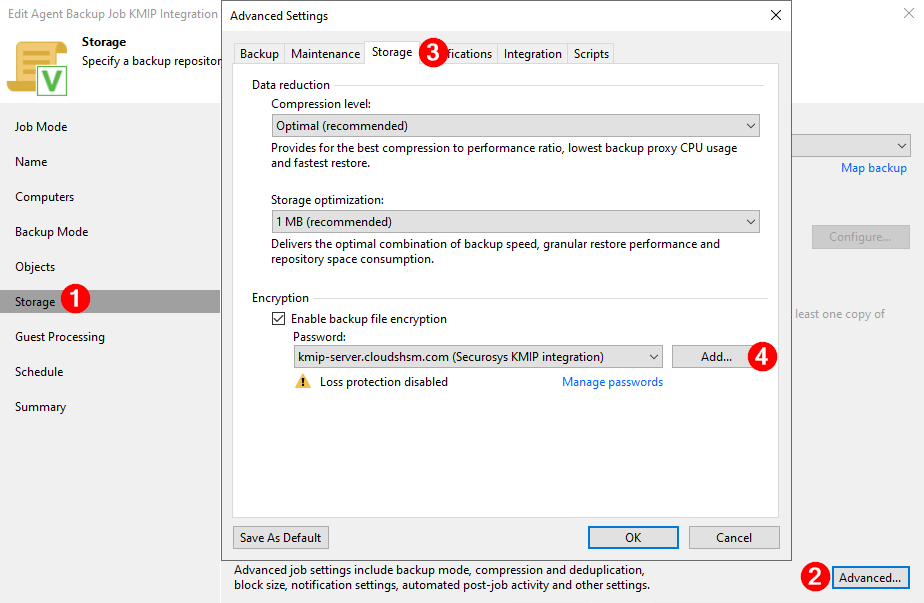
- Navigate to the Storage menu option.
- Select Advanced job settings.
- Open the Storage tab on the top.
- Check the "Enable backup file encryption" box and from the dropdown menu, select your KMIP Server.
We recommend to additionally "Save as Default" the Encryption details, so that all of your future backups will be encrypted.
Veeam offers a Loss Protection functionality. This is intended for when you cannot reach your KMIP Server.
This page will not go over the steps on how to enable Loss Protection.
For more details follow the instructions on Password Loss Protection.
Running Encrypted Backups
Now that encryption is enabled, each future backup job run will trigger VBR to connect the KMIP Server and create a dedicated key pair for the encryption of this particular backup job.
During the run or after completion of a backup job, the Action tab of the job shows a message "Backup file will be encrypted". This message confirms that this backup is encrypted with a key created by your KMIP Server.
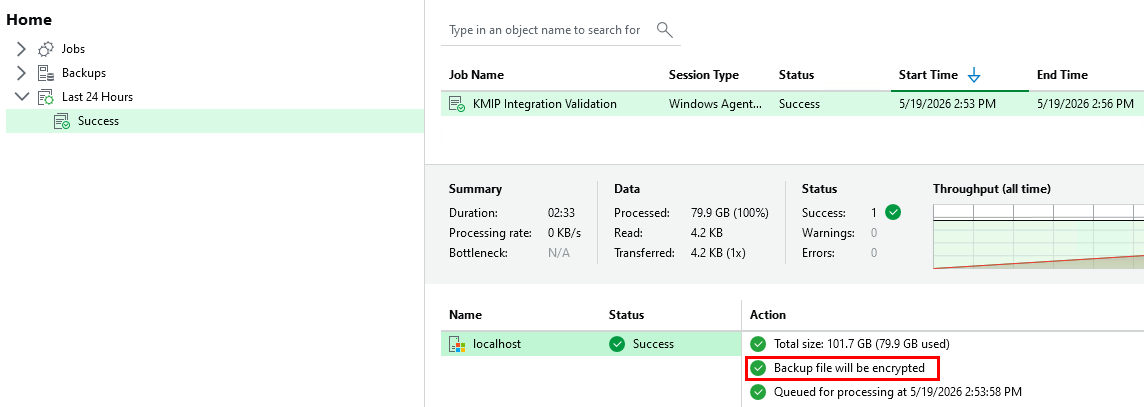
In the Backups tab of the Home menu, you can see a list of Job Names. Any job that has a yellow key icon is encrypted and protected.

Restoring Encrypted Backups
As VBR is connected to your KMIP Server, when you request a restore from a backup file, the application will request the private key to decrypt the Data Encryption Keys, which then decrypt the backup and import it. VBR does this automatically in the background, so there are no additional actions required.